
Segmentation
A segment is a group of customers who share one or more characteristics. Every campaign in Prisma is aimed at a segment — it’s how you control who receives what message.
Segments are defined by conditions. A condition is a rule applied to a customer field: “age is greater than 30”, “city is equal to Miami”, “has a mortgage product”. Customers who match all conditions in a segment are members of that segment.
Three ways to create a segment
1. From scratch
You define the conditions manually, choosing from any field in your data model. This is the most flexible approach and the one you’ll use most often.
Go to Segments > All Segments, click New Segment, and choose how you want to create it. The same dialog is the entry point for all three methods:
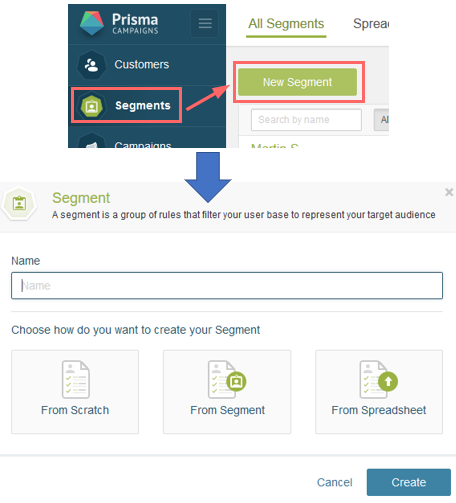
For a step-by-step example, see Targeting a Campaign to Men Under 30.
2. From a spreadsheet
You upload a CSV file that contains a list of customer IDs, and Prisma creates a segment from exactly those customers. You can optionally add conditions on top of the uploaded list to filter it further.
This is useful when the list of target customers comes from an external system or a one-off business decision that can’t be expressed as a data condition.
3. From an existing segment
Choose an existing segment as your starting point. Prisma copies all its conditions into the new segment, and you can add more conditions on top. This is useful when you want a variation of a segment you already have — for example, taking your “Active Customers” segment and further narrowing it to a specific city or product.
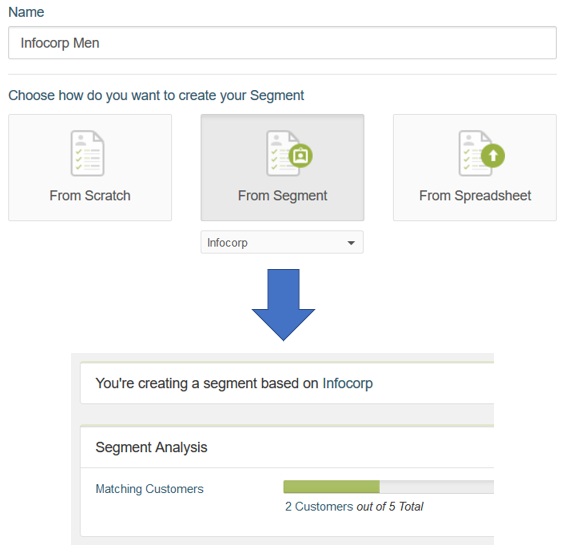
Combining conditions
Conditions within a segment are combined with AND logic: a customer must match all conditions to be included. There is no OR between separate conditions — if you need “customers who meet condition A or condition B”, create two separate segments and use them independently.
OR logic does appear in one place: when building a single condition, you can select multiple values for the same field and they are evaluated as OR. For example, a “City” condition can match Miami, Buenos Aires, or São Paulo in a single rule — any one of those values qualifies the customer.
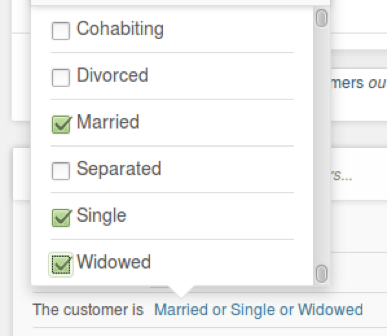
Everyone
Everyone is not a segment you create — it is a special audience option available directly when setting up a campaign. When selected, the campaign targets all customers in your database without any conditions.
It is intended for campaigns displayed in public channels — like a website banner visible to any visitor — where the customer cannot be identified in advance. Everyone is not available for outbound campaigns (email, SMS, push notifications), since those channels require a known contact address for each recipient.
What’s next
Once you have segments defined, you’re ready to create a campaign and choose who to target.
 Related Articles
Was this article helpful?
On this page