
Customer Profile
After loading data, you can look up any individual customer in Prisma to see everything the system knows about them. This is the customer profile.
To open a profile, go to Customers > All Customers, search for the customer by name or ID, and click on their record.
What you’ll find in a profile
Data fields
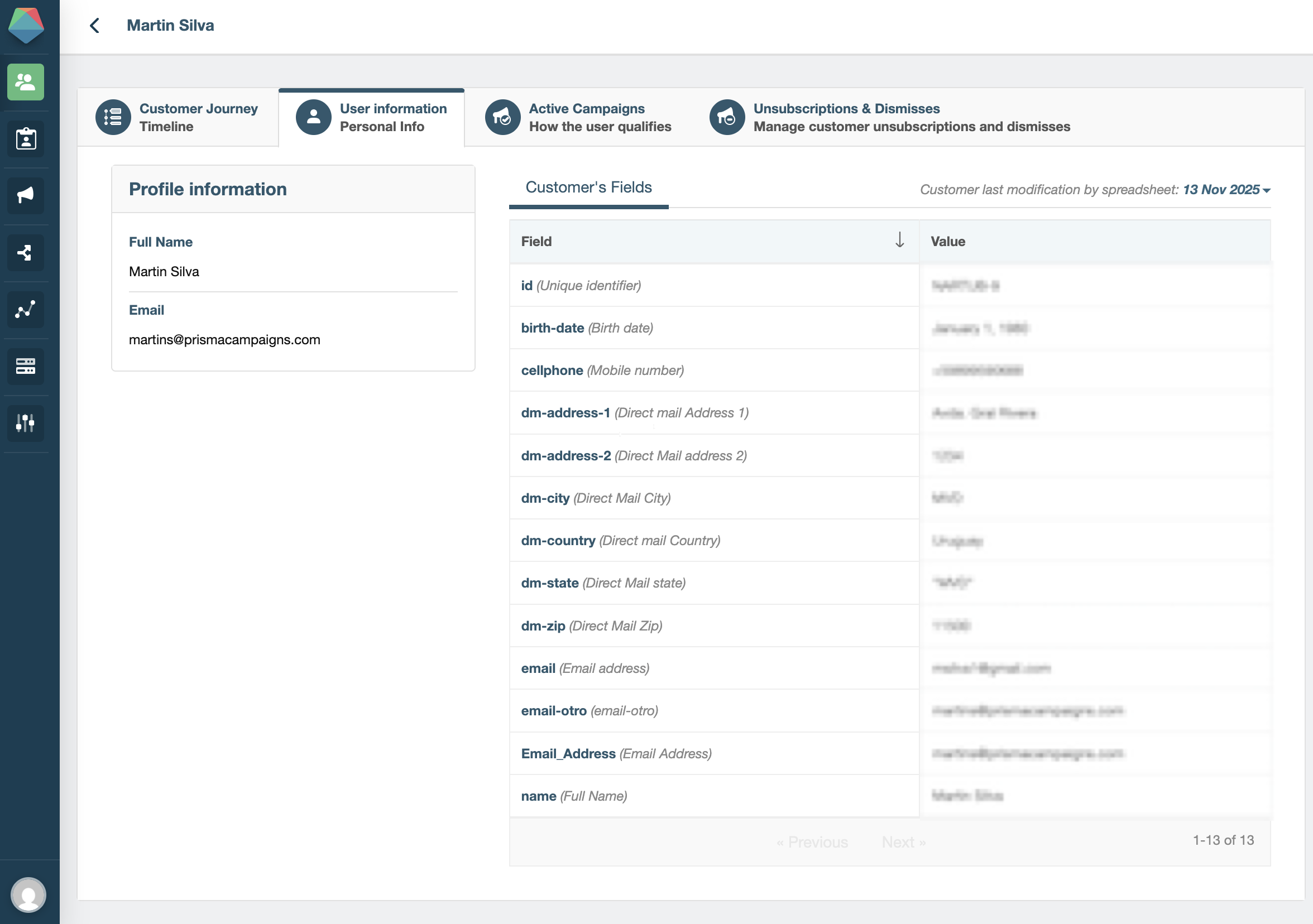
The User Information tab shows the values stored in each field of your data model — name, email, date of birth, account balance, and any other fields you’ve defined. This is a quick way to verify that a data load worked correctly: if the fields show the expected values, your data came in as intended.
Journey and Active Campaigns
The Journey tab and Active Campaigns tab let you trace exactly what happened for this customer — every message received, funnel step completed, and campaign they currently qualify for. See Customer Journey for a full breakdown.
Unsubscriptions & Dismisses
The Unsubscriptions & Dismisses tab shows any channels or campaign categories the customer has opted out of, as well as any campaigns they’ve dismissed. If a customer reports they are not receiving emails, this is the first place to check — they may have unsubscribed from the email channel.
Why this matters
The customer profile is your primary debugging tool. Before investigating a data issue, a segmentation problem, or a missing communication at the campaign level, check the individual profile first. Most answers are there.
 Related Articles
Was this article helpful?
On this page