
Communication Policies
As the number of campaigns in your account grows, some customers will qualify for many of them at the same time. Without limits, a customer could receive multiple messages per day simply because they fall into several segments. Communication Policies let you define how often a customer can be contacted, globally or per category, so you can protect the customer experience without having to manually coordinate every campaign.
How policies work
Policies are defined as limits: a maximum number of contacts per time period. These limits are checked before each outbound send. If a customer has already reached the limit for that period, Prisma skips them for that blast — even if they’re in the campaign’s segment.
Policies apply to:
- Banner popups
- Emails
- SMS
- Push notifications
They do not apply to campaigns whose Campaign Category has the Exclude from communication policies option enabled.
Setting a global limit
A global limit applies across all campaigns. To set one:
- Go to Settings > Communication Policies
- Click Add Limit next to Total Number of Contacts
- Enter a number and choose a period (By Day, By Week, By Month)
- Click Save Changes
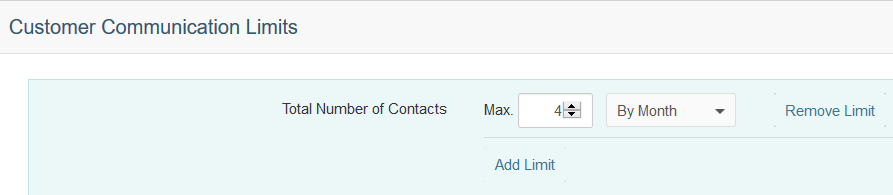
Example: setting a limit of 4 by month means no customer will receive more than 4 outbound messages per calendar month, regardless of how many campaigns they qualify for.
Setting limits by category
You can also set separate limits per campaign category. This is useful when you have different types of campaigns with different acceptable frequencies — for example, allowing up to 8 monthly contacts for promotional campaigns but only 2 for re-engagement campaigns.
Each category appears in the list with its own limit controls:
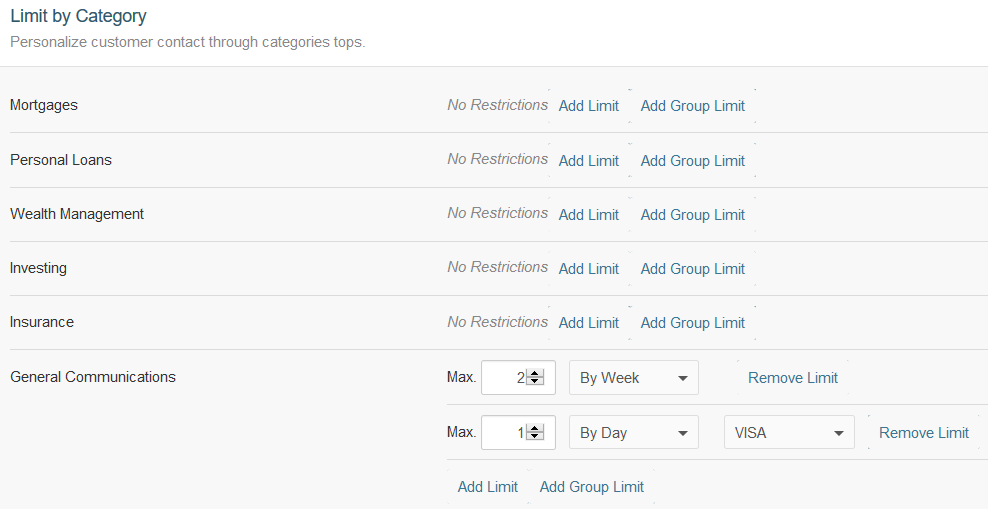
To use category-level limits, you first need to create categories in Settings > Campaign Categories, then assign them to your campaigns. See Campaign Categories for details.
Priority when multiple limits apply
When both a global limit and a category limit are set, the more restrictive one wins. A customer who has reached either limit will not receive additional messages until the period resets.
Assigning a category to a campaign
To connect a campaign to your policies, open the campaign, click the dropdown in the top right area, and select its Category and optionally a Group:
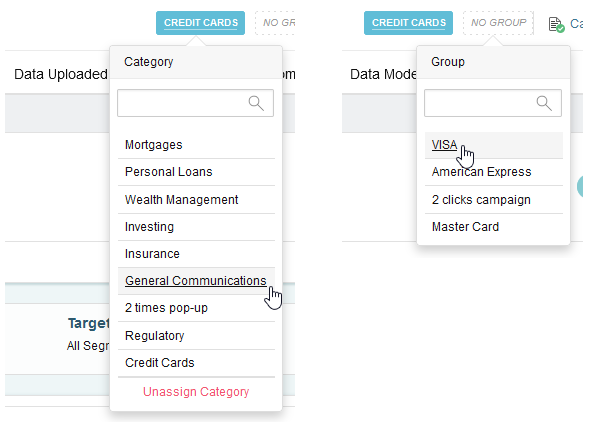
This tells Prisma which policy limits to apply when deciding whether to contact a customer through that campaign.
 Related Articles
Was this article helpful?
On this page