
Campaign Categories
Campaign Categories are labels you assign to campaigns to group them by type. They serve two purposes: applying communication policy limits at a category level, and giving customers the ability to unsubscribe from a type of communication without opting out of everything.
Creating a category
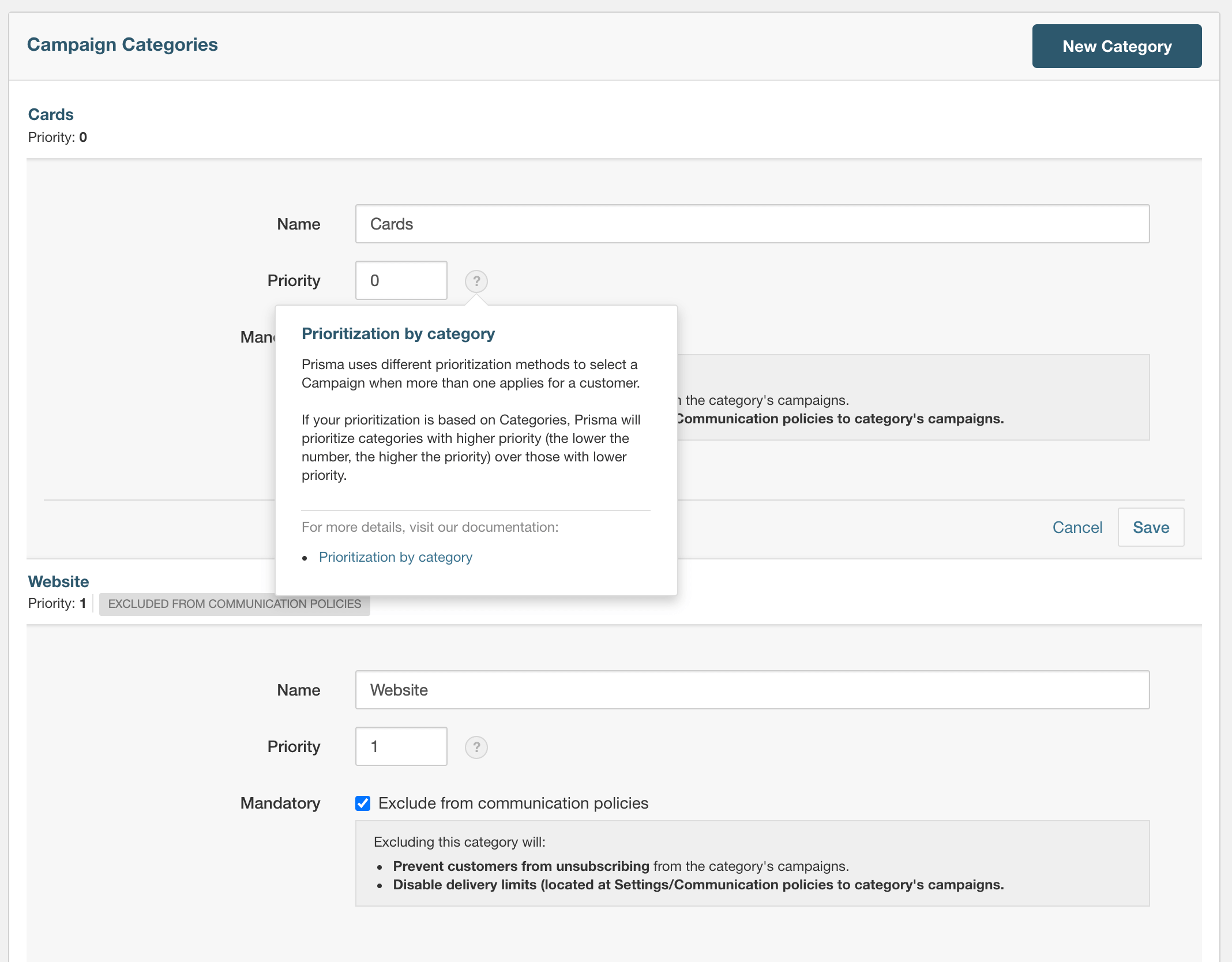
Go to Settings > Campaign Categories and click New Category. You’ll be asked for:
- Name — a descriptive label for this group of campaigns (e.g. “Promotional Offers”, “Account Alerts”, “Re-engagement”)
- Priority — determines the order in which campaigns in this category are shown when a customer qualifies for multiple campaigns. Lower numbers = higher priority.
- Exclude from communication policies — if checked, campaigns in this category will not be counted toward the global contact limits. Use this for high-priority operational messages (e.g. fraud alerts, account notifications) that should always go through regardless of policy limits.
Groups
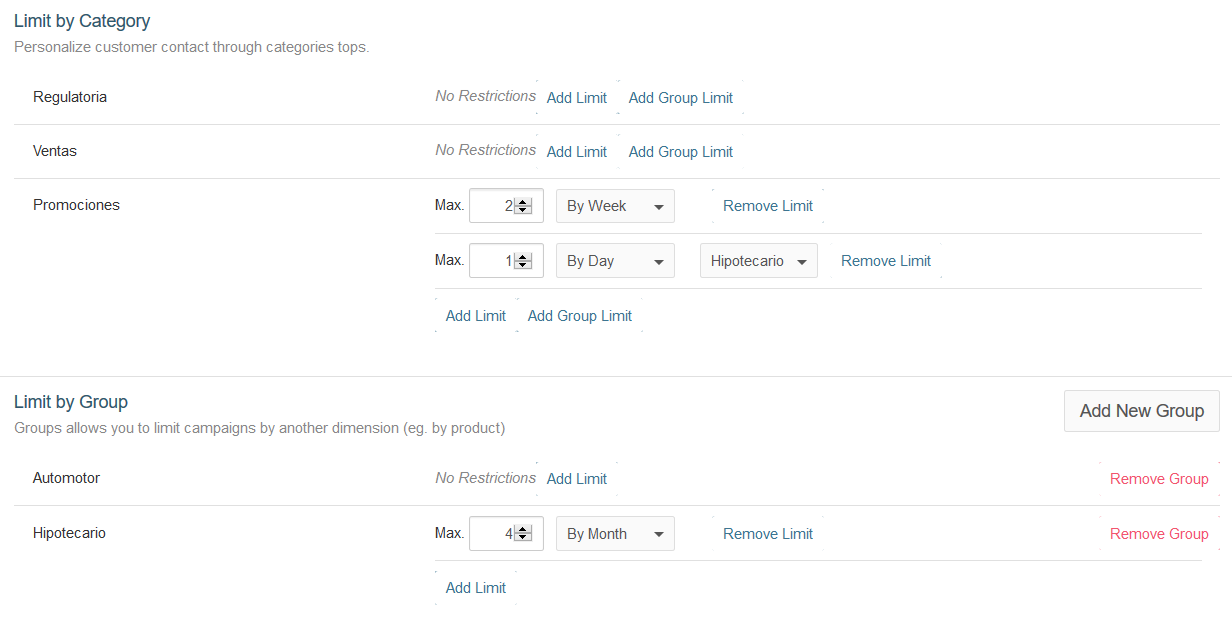
Within a category, you can define Groups to further subdivide campaigns. A group sits one level below a category — for example, within the “Promotional” category you might have groups for “Credit Cards”, “Mortgages”, and “Personal Loans”.
Groups serve two purposes:
- Communication policies can be set per group, giving you frequency limits that are more specific than the full category
- Customers can unsubscribe from a group independently, without opting out of the entire category
Go to Settings > Campaign Categories, open a category, and add groups from within it.
Assigning a category and group to a campaign
Open any campaign, locate the Category and Group dropdowns in the top right area, and select the appropriate values. Both fields are optional, but assigning them is what connects the campaign to your policy limits and gives customers granular unsubscribe options.
How categories affect the customer experience
When you include an unsubscribe link in a message, customers can choose to opt out of that specific category rather than all communications. For example, a customer could unsubscribe from “Promotional Offers” while staying subscribed to “Account Alerts”. This is better for retention than a blanket opt-out.
Suggested categories to start with
There’s no fixed list — categories should reflect how your business thinks about communications. A common starting structure:
| Category | Priority | Exclude from policies |
|---|---|---|
| Account Alerts | 1 | Yes |
| Transactional | 2 | Yes |
| Promotional | 3 | No |
| Re-engagement | 4 | No |
Start simple. You can always add more categories as your campaign program grows.
 Related Articles
Was this article helpful?
On this page