
Setting up Push Notifications
This article describes the steps to configure push notifications in a mobile application. The objective is to start the application when a customer opens a notification on their device.
Before proceeding, it is necessary to have previously obtained the credentials from Firebase or Apple depending on whether the application is for Android or iOS phones, respectively (a private key .json file for Android, or a certificate for iOS). These credentials establish a trusted connection between the devices and the application itself and enable the application to function securely.
Adding Credentials to Your Application
Once obtained, follow the steps below to upload the credentials to Prisma Campaigns and associate them with a new application (called BankApp in the following example):
-
Go to Settings/Applications and click New Application.
-
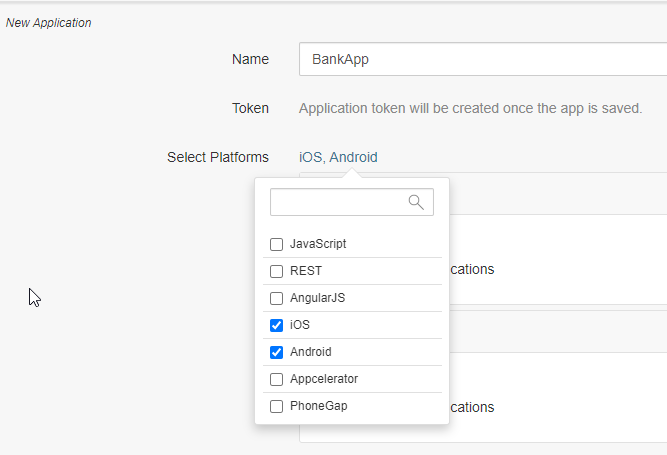
Enter the name and select iOS and Android under Select Platforms.
-
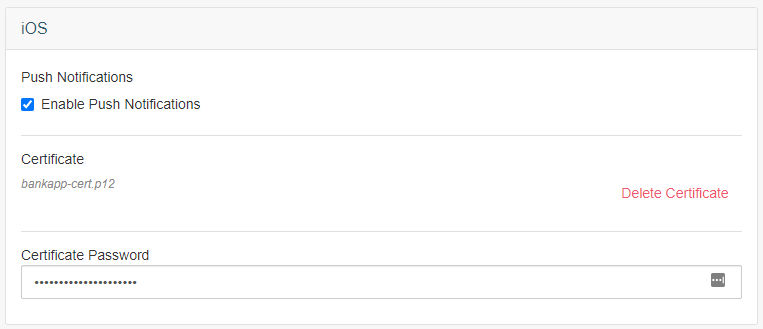
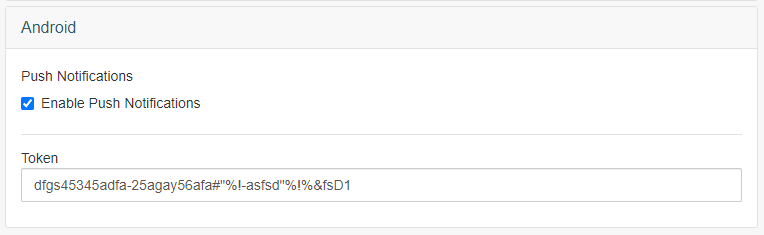
Check the Enable Push Notifications checkboxes in the iOS and Android sections.
-
In iOS, upload the .p12 certificate you generated earlier and enter the associated password. Ensure that the Apple Push Notification service (APNs) capability is enabled for your application first.
-
Under Android, upload the .json private key file downloaded from Firebase. This file contains sensitive credentials; store it in a safe place and do not share it.
-
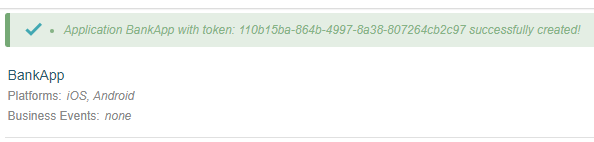
Click Save. Doing so creates the internal token used by Prisma Campaigns to identify the BankApp application:
After completing the above steps, go to Campaigns and refer to Adding Push Notifications in a Campaign to continue.
 Related Articles
Was this article helpful?
On this page