
Duo (Identity Management)
Duo is an identity security platform that provides multi-factor authentication (MFA), single sign-on (SSO), and access policy enforcement.
Prisma Campaigns integrates with Duo Single Sign-On using SAML 2.0. This allows users to access Prisma Campaigns through Duo using their organization’s existing identity source and Duo authentication policies.
This guide explains how to configure Duo as an Identity Provider (IdP) for Prisma Campaigns.
During this process, you will collect the Duo Identity Provider metadata and provide it to the Prisma Campaigns technical support team. The support team must complete the Prisma Campaigns configuration before the integration can be tested.
Prerequisites
Before beginning, make sure that:
- Duo Single Sign-On is enabled and configured.
- An authentication source is configured in Duo.
- You have access to the Duo Admin Panel.
- Your Duo administrator role allows you to manage applications.
- You know the URL of your Prisma Campaigns instance.
- The users who require access exist in Duo or its configured authentication source.
Create the SAML Application
-
Log in to the Duo Admin Panel.
-
Go to Applications → Application Catalog.
-
Search for
Generic SAML Service Provider. -
Locate Generic SAML Service Provider - Single Sign-On and click + Add.
-
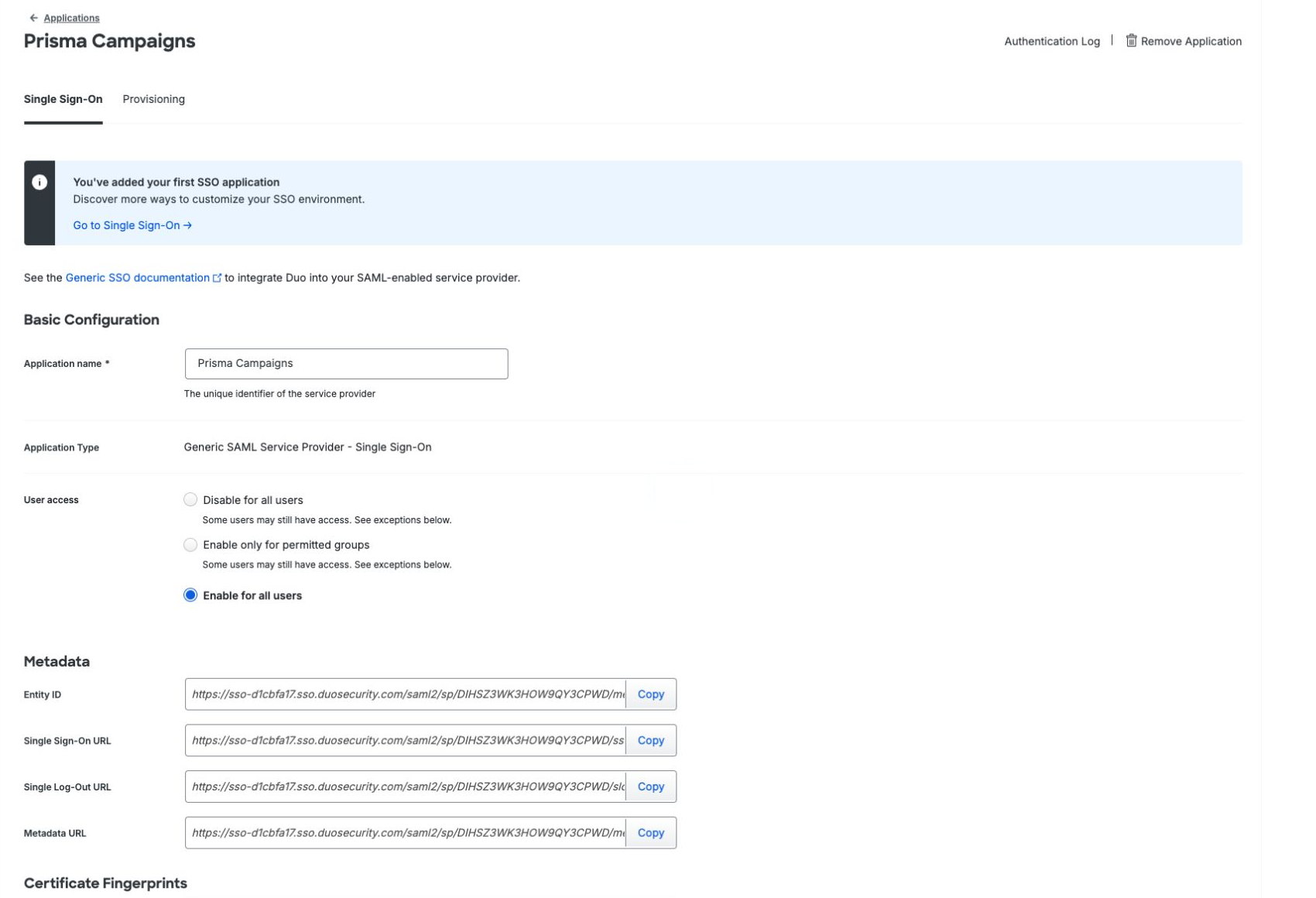
In Application name, enter:
Prisma Campaigns
Configure User Access
In Basic Configuration, select the appropriate User access option:
- Enable only for permitted groups to grant access to specific Duo groups.
- Enable for all users to grant access to all active Duo users.
Make sure the user who will test the integration has access to the application. Adding an application does not necessarily grant users access automatically.
Configure the Service Provider
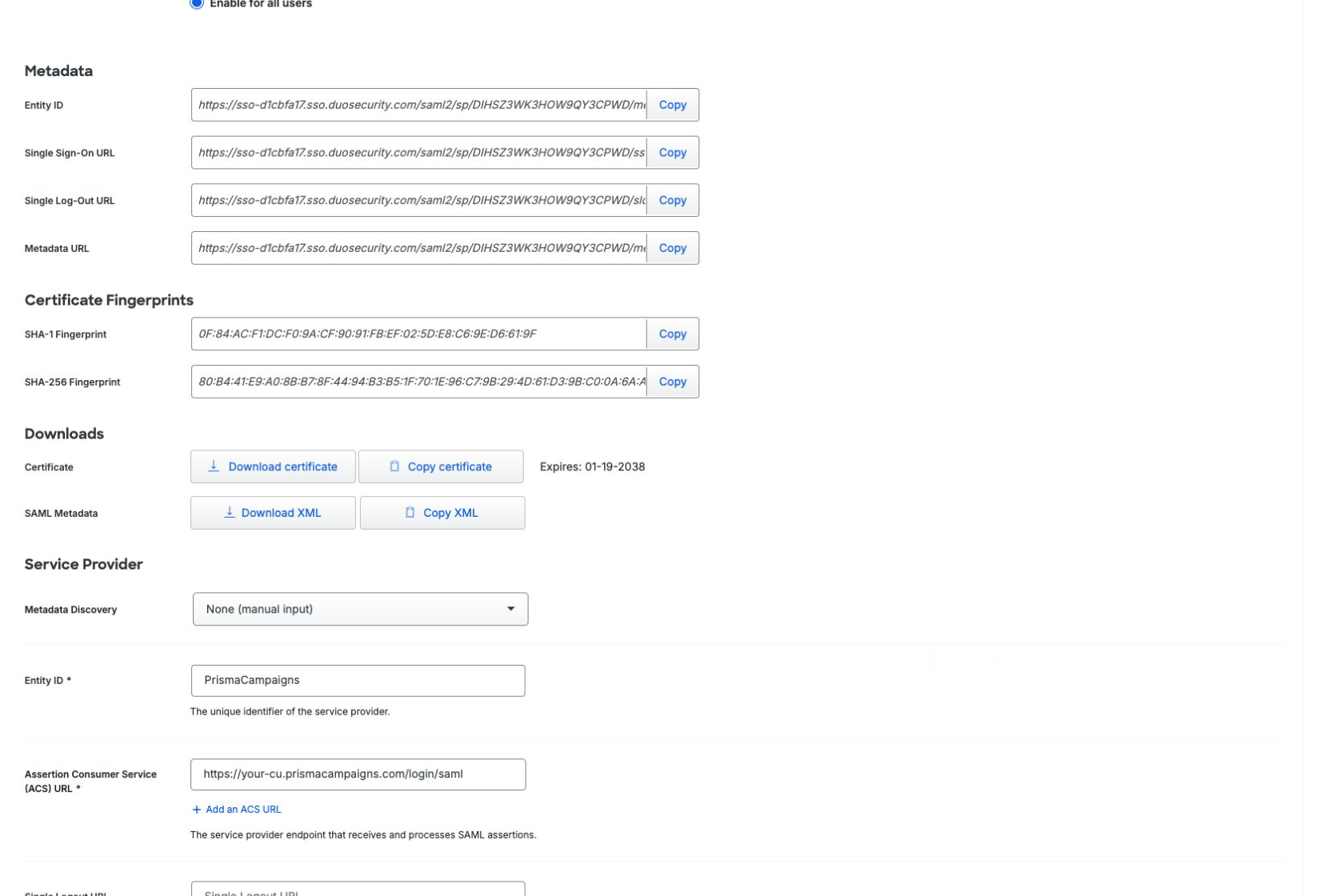
Scroll down to the Service Provider section.
Configure the following values:
| Field | Value |
|---|---|
| Metadata Discovery | None (manual input) |
| Entity ID | PrismaCampaigns |
| Assertion Consumer Service (ACS) URL | https://your-comp.prismacampaigns.com/login/saml |
| Single Logout URL | Leave blank |
| Service Provider Login URL | Leave blank |
| Default Relay State | Leave blank |
Replace your-comp.prismacampaigns.com with the domain of your Prisma Campaigns instance.
For example:
https://example.prismacampaigns.com/login/saml
The ACS URL is the Prisma Campaigns endpoint that receives and processes the SAML response sent by Duo.
Configure the SAML Response
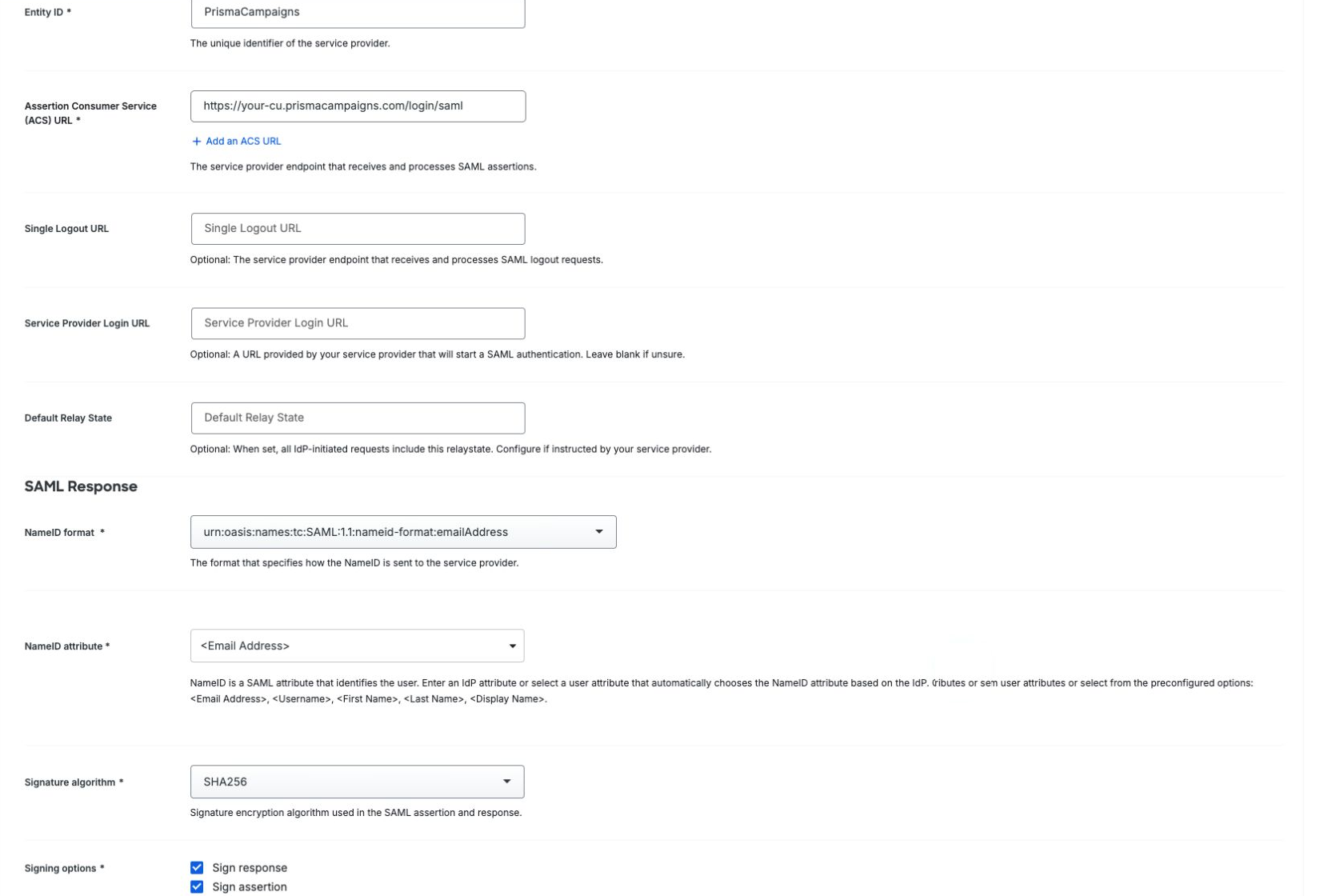
In the SAML Response section, configure the following values.
NameID
| Field | Value |
|---|---|
| NameID format | urn:oasis:names:tc:SAML:1.1:nameid-format:emailAddress |
| NameID attribute | <Email Address> |
| Signature algorithm | SHA256 |
The email address sent by Duo must match the email address of the corresponding Prisma Campaigns user.
Signing Options
Enable the following options:
- Sign response
- Sign assertion
Leave Encrypt the SAML assertion disabled unless the Prisma Campaigns technical support team specifically requests assertion encryption.
Configure SAML Attributes
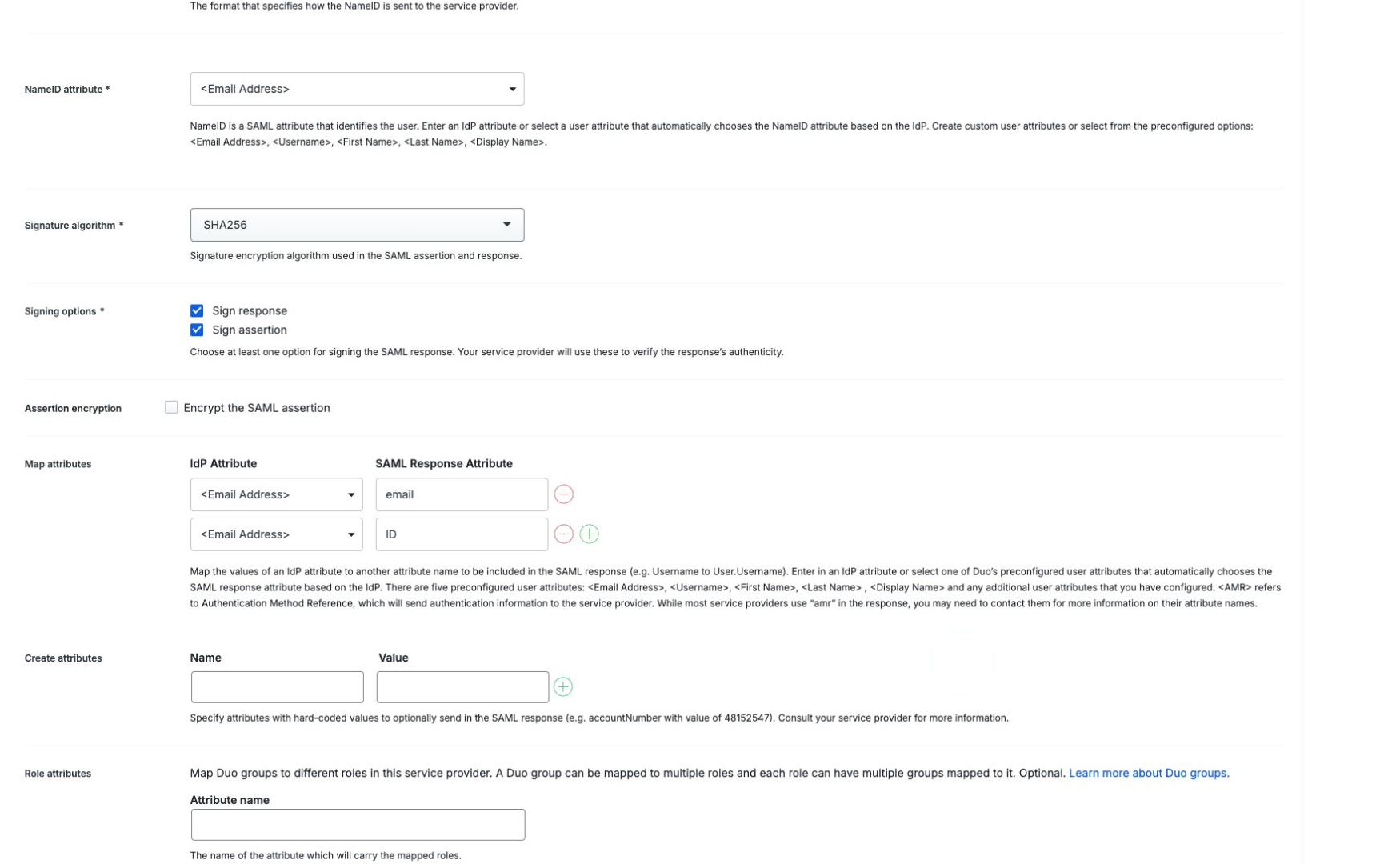
In Map attributes, add the following mappings:
| IdP Attribute | SAML Response Attribute |
|---|---|
<Email Address> |
email |
<Email Address> |
ID |
To create the mappings:
-
Select
<Email Address>in the IdP Attribute field. -
Enter the following in SAML Response Attribute:
email -
Click the green + button to add another row.
-
Select
<Email Address>in the new IdP Attribute field. -
Enter the following in SAML Response Attribute:
ID
Do not use the Create attributes section for these values. That section creates attributes with fixed values instead of using information from the authenticated user.
Save the Application
After completing the configuration:
-
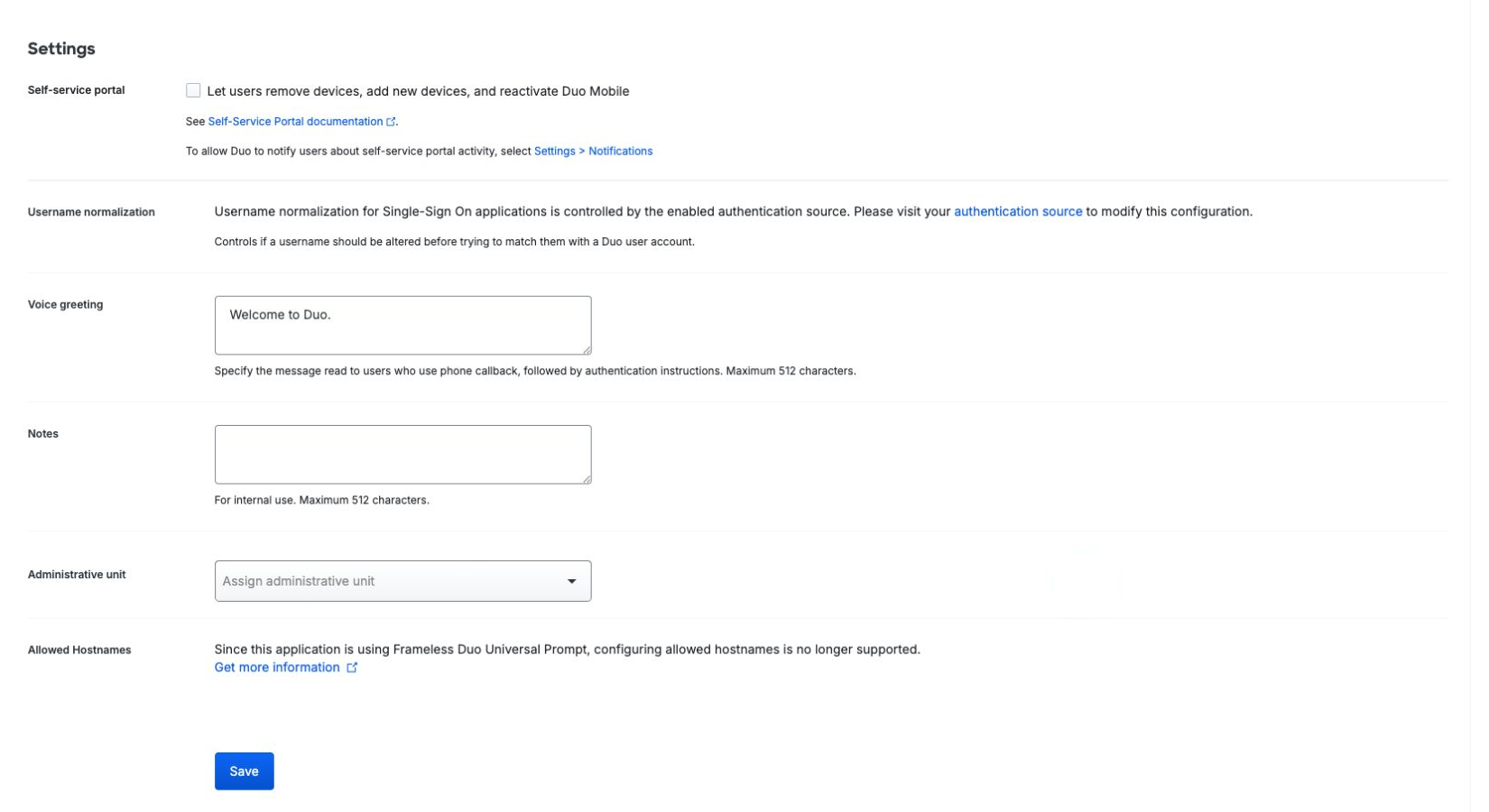
Scroll to the bottom of the application page.
-
Click Save.
-
Confirm that Duo displays the following message:
Application modified successfully.
The application configuration has not been applied until this confirmation appears.
Obtain the Duo Identity Provider Metadata
After saving the application, return to the Metadata section near the top of the application page.
The section contains the following values:
- Entity ID
- Single Sign-On URL
- Single Logout URL
- Metadata URL
It also provides:
- The Duo SAML signing certificate.
- The SHA-1 certificate fingerprint.
- The SHA-256 certificate fingerprint.
- A downloadable SAML metadata XML file.
Provide the Prisma Campaigns technical support team with either:
- The downloaded SAML metadata XML file; or
- The Entity ID, Single Sign-On URL, and downloaded signing certificate.
To download the files:
-
Under Downloads, click Download certificate.
-
Click Download XML to download the SAML metadata.
Do not send administrator credentials, private keys, browser cookies, or authentication tokens. The downloaded public signing certificate and metadata XML are sufficient.
Information Required by Prisma Campaigns
Provide the following information to the Prisma Campaigns technical support team:
| Information | Source |
|---|---|
| Duo Entity ID | Duo application’s Metadata section |
| Duo Single Sign-On URL | Duo application’s Metadata section |
| Duo signing certificate | Downloads → Download certificate |
| Prisma Campaigns domain | The URL used to access Prisma Campaigns |
| Expected user email domain | Your organization’s email domain |
The support team will configure the integration in the Prisma Campaigns backend.
Test the Integration
Wait until the Prisma Campaigns technical support team confirms that the backend configuration is complete.
Then:
-
Confirm that the test user has access to the application in Duo.
-
Open a private or incognito browser window.
-
Navigate to:
https://your-comp.prismacampaigns.com/app -
Prisma Campaigns should redirect the browser to Duo Single Sign-On.
-
Complete primary authentication and any MFA challenge required by the Duo policy.
-
Duo should return the browser to:
https://your-comp.prismacampaigns.com/login/saml -
After successful validation, Prisma Campaigns should redirect the user to the application.
The expected flow is:
Prisma Campaigns
    → Duo Single Sign-On
    → Primary authentication
    → Duo MFA
    → Prisma Campaigns ACS endpoint
    → Prisma Campaigns application
Troubleshooting
Prisma Campaigns Shows the Password Login Page
Verify that:
- The Prisma Campaigns technical support team completed the backend configuration.
- The company is configured to use SAML authentication.
- The domain in the browser matches the domain configured for the company.
- The SAML configuration has been enabled.
- Any required Prisma Campaigns service restart has been completed.
Duo Does Not Allow the User to Access the Application
Verify that:
- The user exists and is active in Duo.
- The user belongs to a permitted group.
- User access is not set to Disable for all users.
- The effective Duo policy allows the authentication.
Duo Returns an ACS or Audience Error
Verify the following values:
Entity ID: PrismaCampaigns
ACS URL: https://your-comp.prismacampaigns.com/login/saml
The ACS URL must use the exact Prisma Campaigns domain, protocol, and path configured for the integration.
Prisma Campaigns Cannot Find the User
Verify that:
- Duo sends an attribute named
email. - The attribute contains the user’s complete email address.
- The email address matches an existing Prisma Campaigns user.
- The user belongs to the company associated with the SAML configuration.
Prisma Campaigns Rejects the SAML Response
Verify that:
- Sign response is enabled.
- Sign assertion is enabled.
- The signature algorithm is
SHA256. - Prisma Campaigns has the current Duo signing certificate.
- The certificate has not expired or been replaced.
- Assertion encryption is disabled unless explicitly configured on both sides.
The Configuration Was Entered but Does Not Work
Return to the bottom of the Duo application and click Save.
Confirm that Duo displays:
Application modified successfully.
Without this confirmation, changes made to the application may not have been applied.
Authentication Logs
Duo authentication events can be reviewed from the Duo Admin Panel.
Use:
Applications → Prisma Campaigns → Authentication Log
You can also review Duo Single Sign-On activity under:
Reports → Single Sign-On Log
When contacting support, provide:
- The approximate authentication time.
- The affected user.
- The Prisma Campaigns domain.
- A screenshot with sensitive URLs and tokens removed.
- The relevant Duo authentication result.
- Any reference identifier shown by Prisma Campaigns.
 Related Articles
Was this article helpful?
On this page