WS_FTP Professional: Connecting to the SFTP Server
Prisma Campaigns provides a secure SFTP server for you to upload and download data. This guide will walk you through setting up WS_FTP Professional to connect to our SFTP server using public key authentication.
Step 1: Generating an SSH Key Pair
To connect securely, you’ll need an SSH key pair: a private key that stays on your computer, and a public key that you will send to us.
In WS_FTP Professional
- Open WS_FTP.
- Go to Tools/Options.
- In the Program Options window, select SSH/Client Keys.
- Click Create… to open the SSH Client Key Pair Generation Wizard.
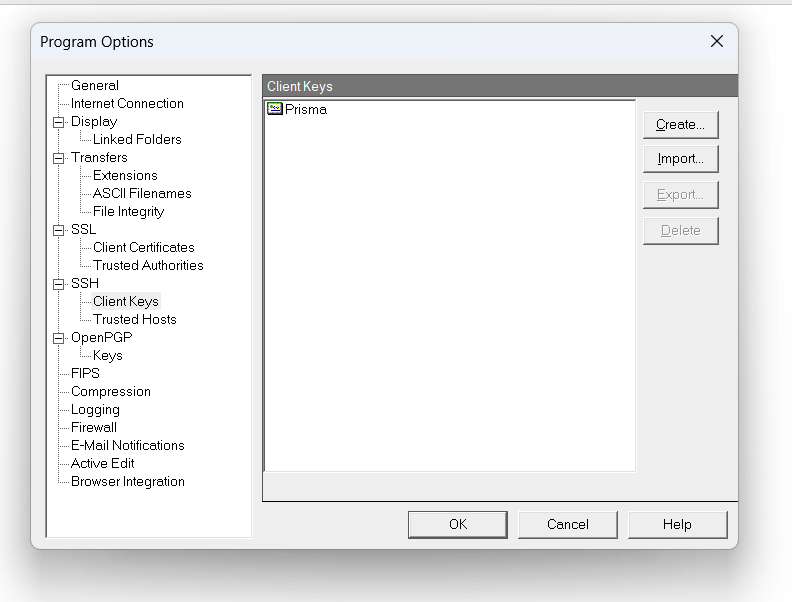
- Choose RSA as the key type and set the key size to 2048 bits. Click Next.
- Enter a name for your key (e.g., Prisma) and an optional passphrase for added security. Click Next.
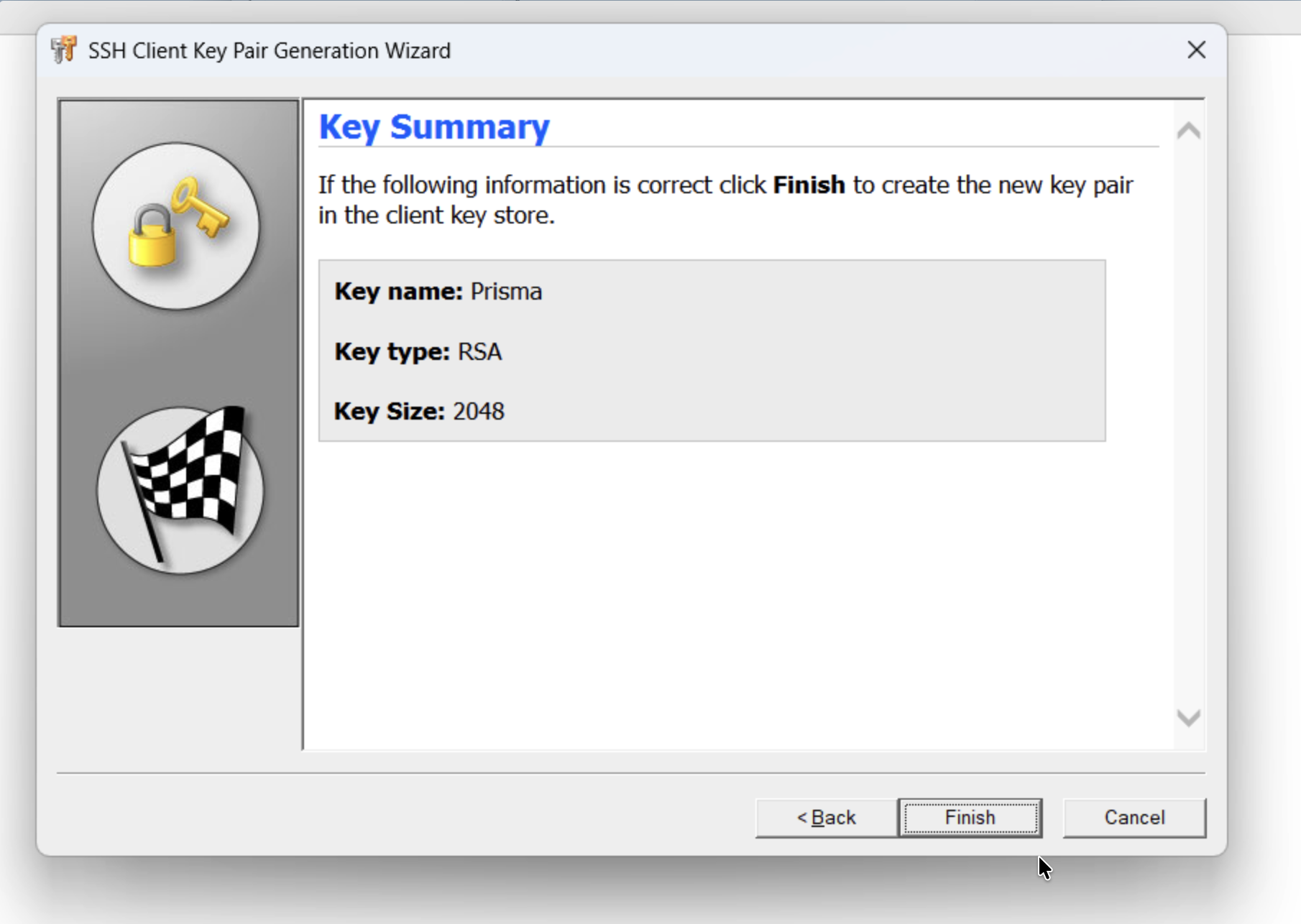
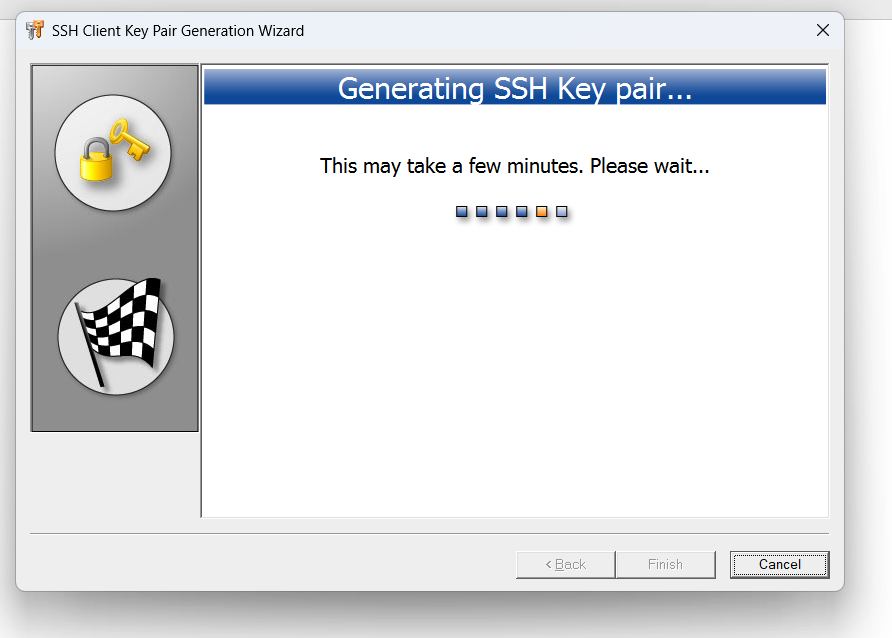
- Review the key summary and click Finish. The key generation process will begin.
- Your new key will now appear in the Client Keys list.
Step 2: Exporting Your Public Key
You need to send your public key to the Prisma Campaigns support team so we can authorize your connection.
In WS_FTP
- In the Program Options/SSH/Client Keys window, select the key you just created.
- Click Export….
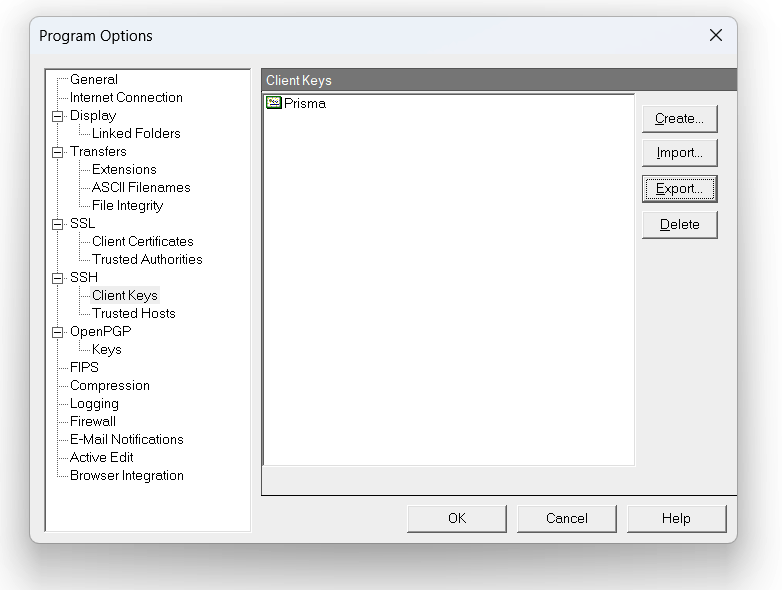
- Save the public key file to a location you’ll remember. It’s best to use a descriptive name and the
.pubextension (e.g.,your_company_name.pub).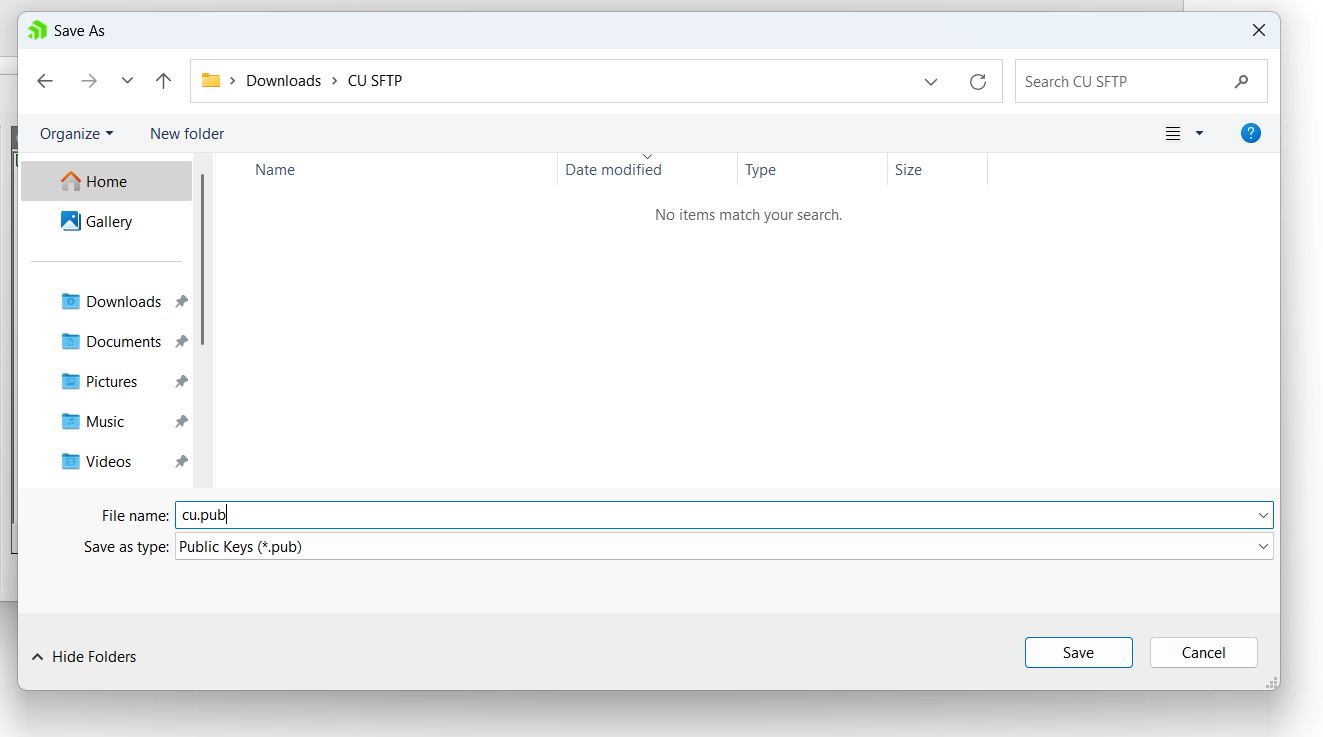
Step 3: Send Your Public Key to Support
Attach the .pub file (or paste the copied key) and send it to your Prisma Campaigns support contact through a secure, agreed-upon channel. We will install the key on the SFTP server. Please wait for confirmation that your key has been installed before attempting to connect.
Step 4: Configuring the SFTP Connection in WS_FTP
- In WS_FTP, click Connections/New Connection.
- Enter a Site Name (e.g., Prisma Campaigns SFTP).
- For Connection Type, select SFTP/SSH.
- For Server Address, enter
sftp.prismacampaigns.com. - Enter the User ID provided to you by Prisma Campaigns.
- In the left pane, go to SSH.
- For the authentication method, check Public Key.
- From the SSH keypair dropdown, select the key you created earlier (e.g., Prisma).
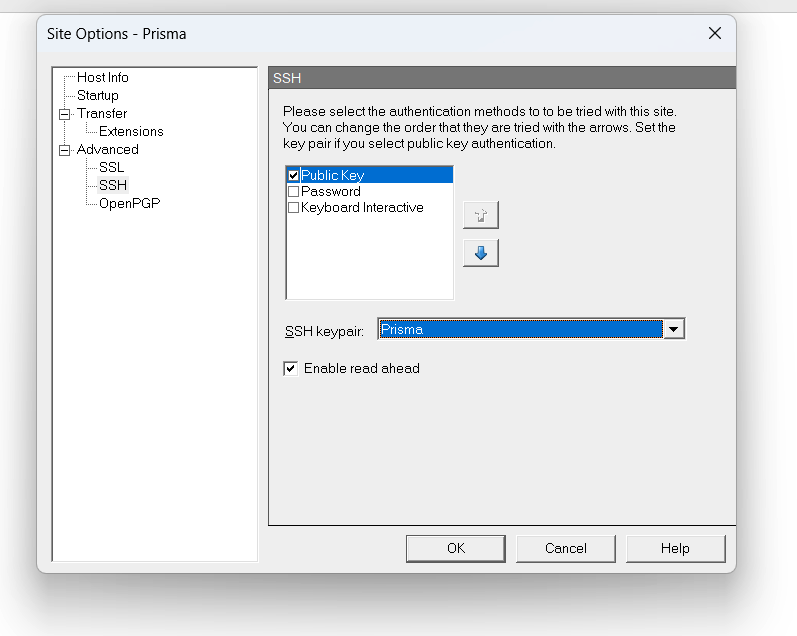
- Click OK to save the site configuration.
Step 5: Connecting to the Server
- From the main WS_FTP window, select the site you just configured from the Connections dropdown and click Connect.
- The first time you connect, you will be presented with an Untrusted SSH Server Key warning. This is normal. Verify the key details if provided by support and click Trust this key.
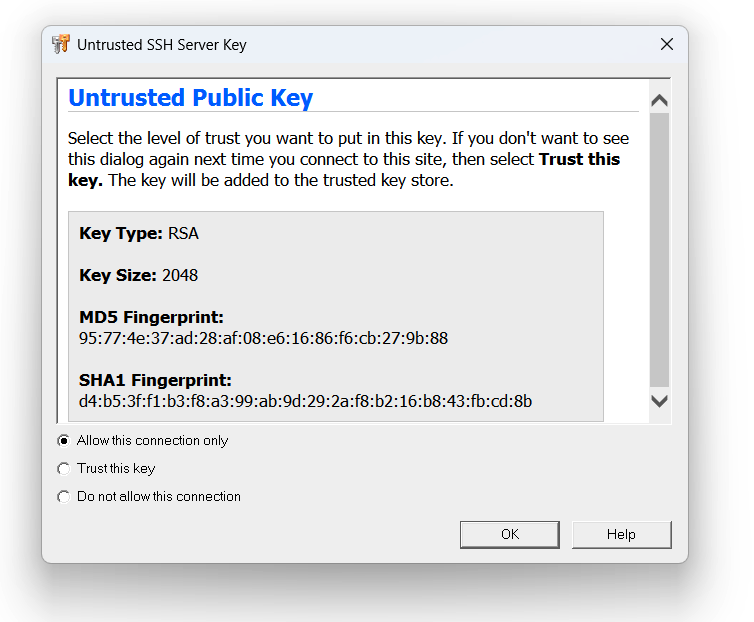
- If the connection is successful, you will see your local files on the left and the remote directories on the Prisma Campaigns SFTP server on the right.
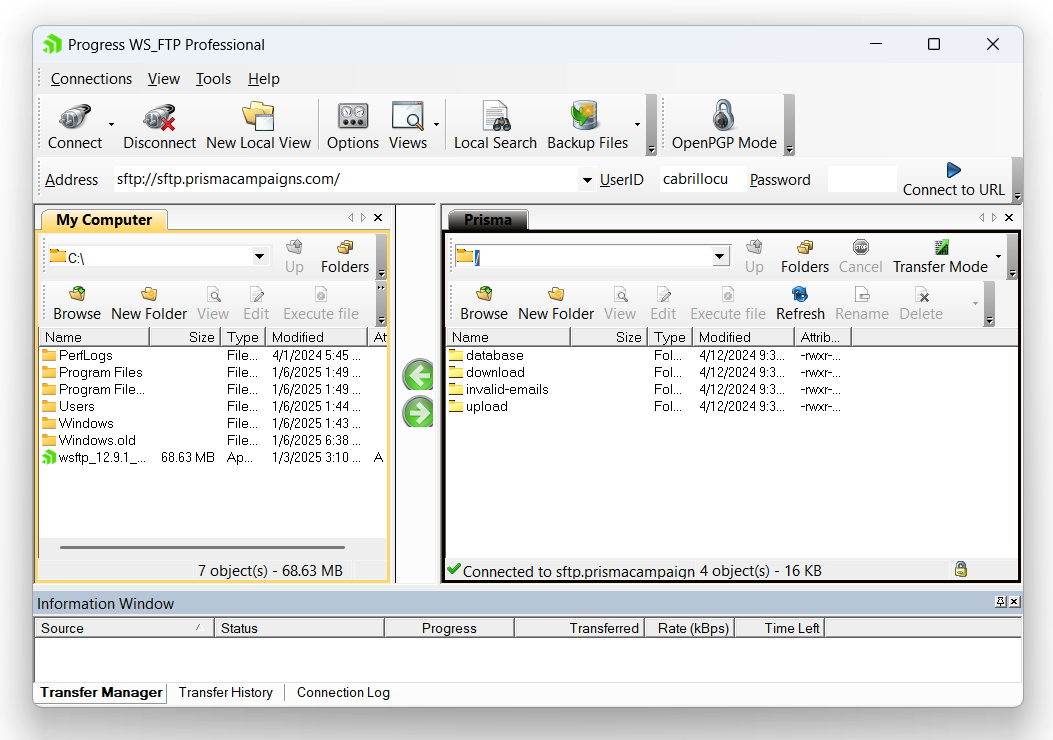
Troubleshooting
WS_FTP 12.9+
If you are using WS_FTP 12.9 or later, you may encounter this known issue reported by Progress when authenticating with a public/private key pair.
As a workaround, edit the ssh-algos.txt file and remove the ssh-dss entry so the file looks like this:
The file is located in C:\Users\<username>\AppData\Roaming\Ipswitch\WS_FTP.
===ssh-shk
ssh-rsa
After making this change, restart WS_FTP and test the connection again.
WS_FTP Logs
If you still have connection issues, you can collect the WS_FTP logs and send them to the Prisma Campaigns support team.
According to this Progress article about WS_FTP log locations, the logs are located in C:\Users\Logged_in_user_name\AppData\Roaming\Ipswitch\WS_FTP\Logs.
Related Articles
On this page