Acquisition of Products Assigned to Campaigns
A product list is a structured and efficient method for managing the products your customers have acquired. It allows you to define the products your institution offers to each customer in a simple way and also track which ones they have acquired over time. The acquisition of a product is determined based on the customer’s data.
This functionality not only allows you to see the products a customer has, but also makes it significantly easier to segment and target customers based on the products they have.
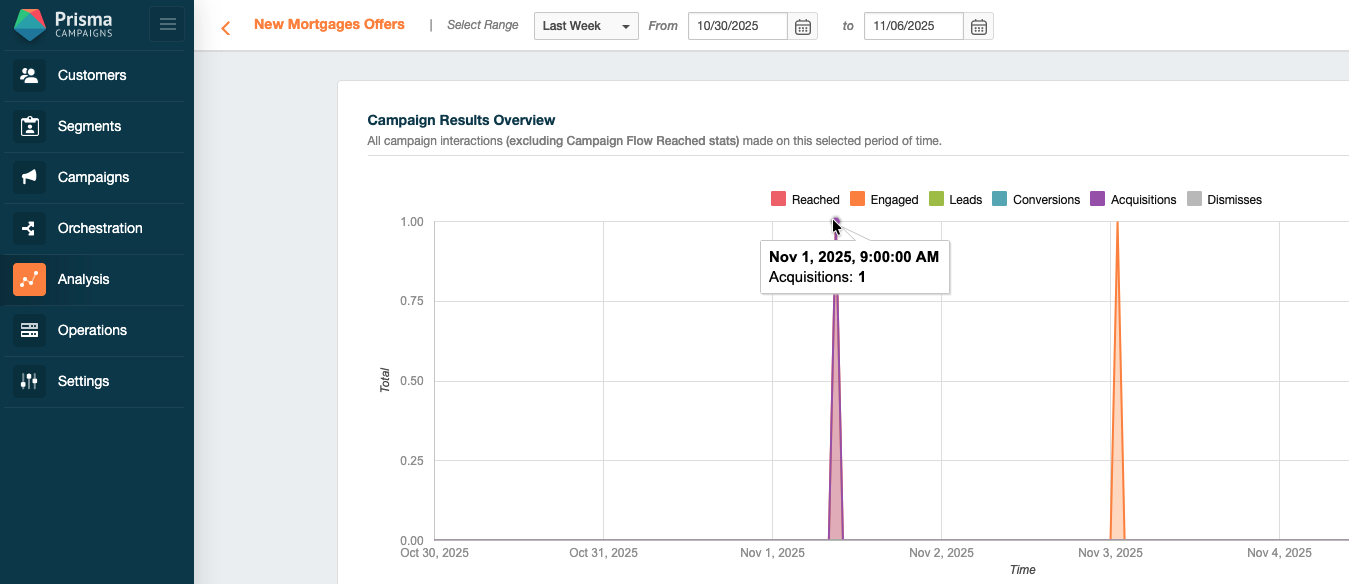
In cases where a campaign has an assigned product, any modification of those data will reflect the product acquisition in the analysis screen.
How to Set Up Products
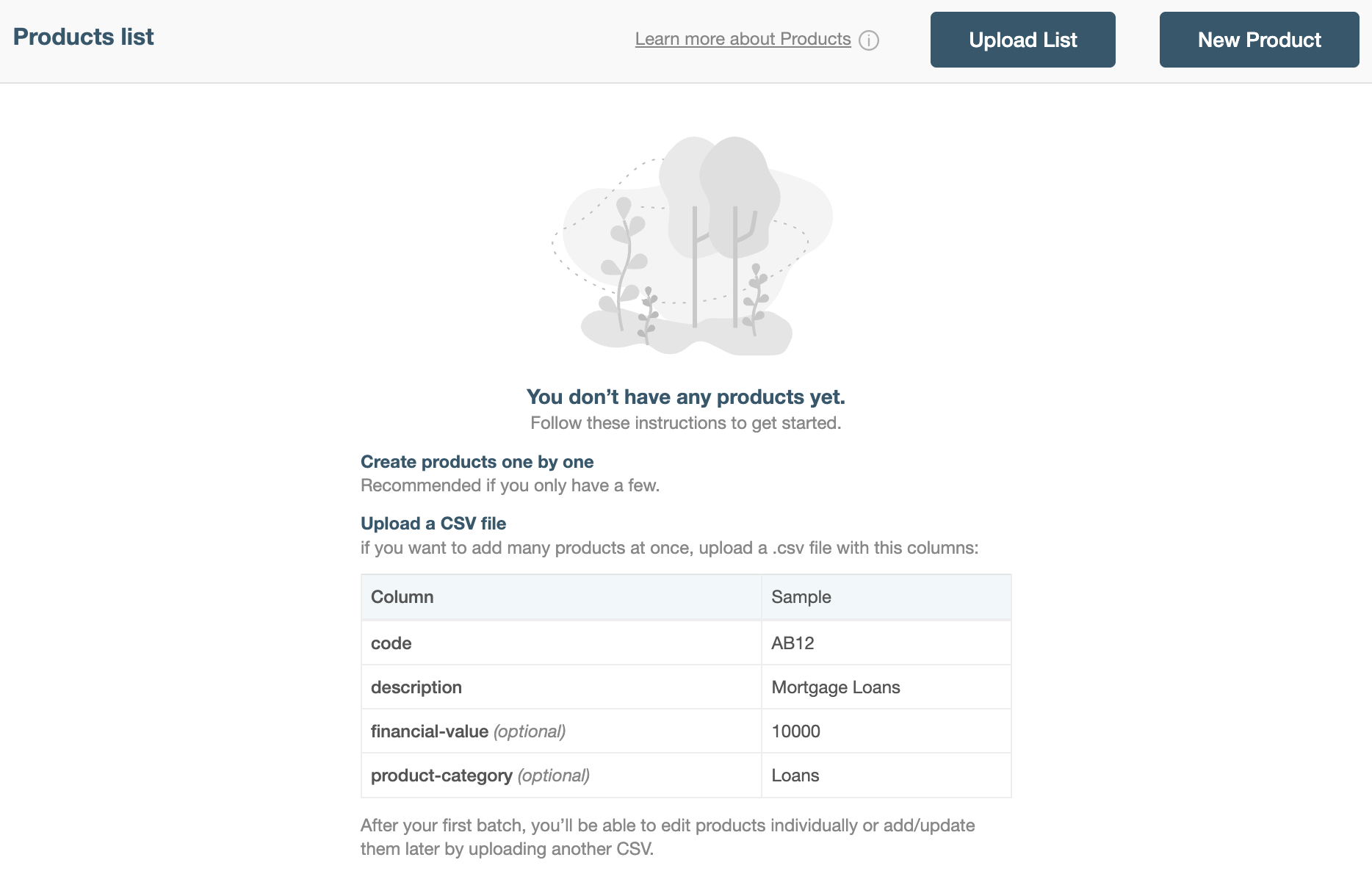
First, you need to define the products your institution offers from the Settings/Product List section. This can be done in two ways:
- Enter products manually (recommended if you only have a few), or
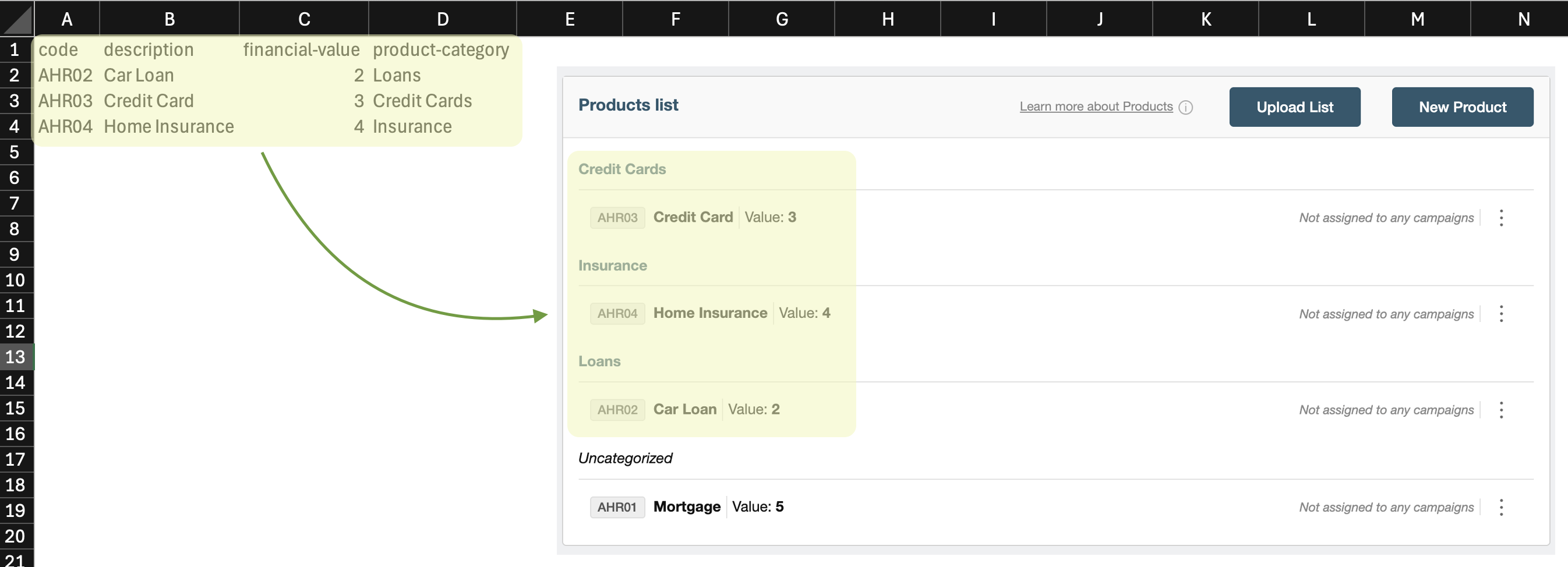
- Upload a product list from a .csv file (if you want to add many products at once). The required columns are code and description, while financial-value and product-category are optional.
Manual Creation
-
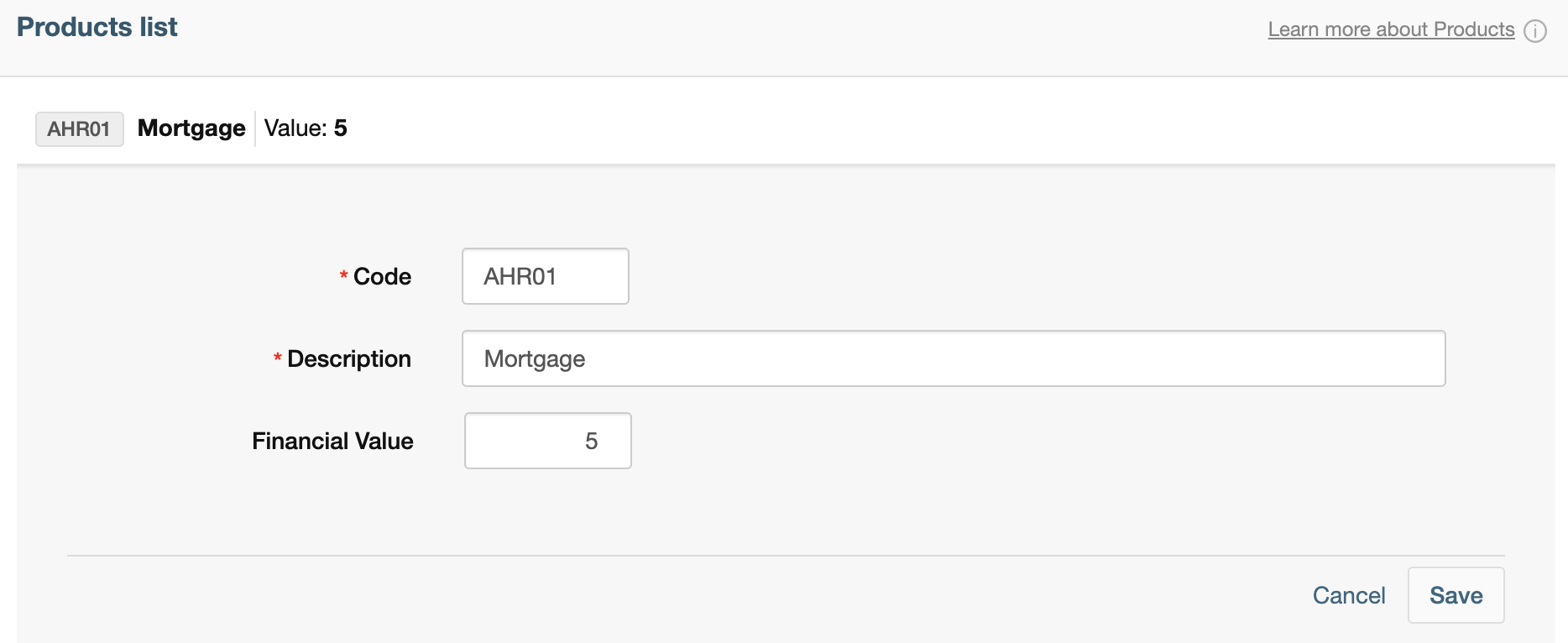
Click on New Product and fill in the fields with the product data:
-
Press Save to add the product.

Upload a Product List Using a .csv File
-
Click on Upload List and select the .csv file that contains the product data.
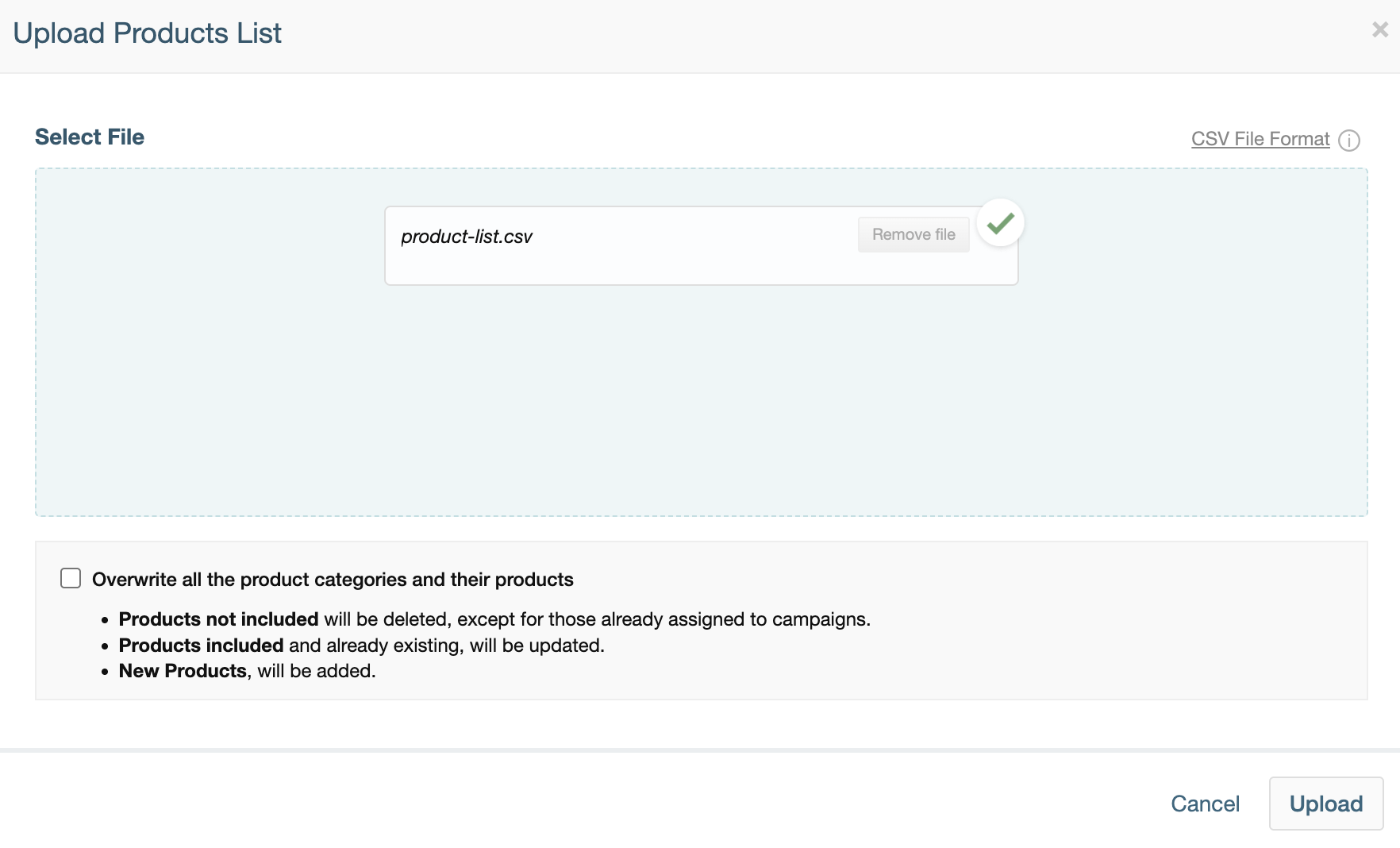
If you want to replace or delete existing products, you can do so in the same process by selecting the Overwrite all the product categories and their products option. Those that are not found in the .csv file will be deleted, while those that are found will be updated. Products that are found in the .csv file but not in the existing product list will be added.
-
Press Upload to save.
Mapping Data to Products
Once you have defined your products, you can link your customer data to these products. This tells Prisma Campaigns how to determine if a customer has a specific product.
In the Customers/Data Model tab, hit Edit on the field (simple or composite) that contains information about the product(s).
Simple Field
The images below show the simple product field as an example.

In the field configuration, enable the option This field contains products information and add the necessary conditions to link the field to the corresponding product(s). For example, User has product Home Insurance if field values is Y.
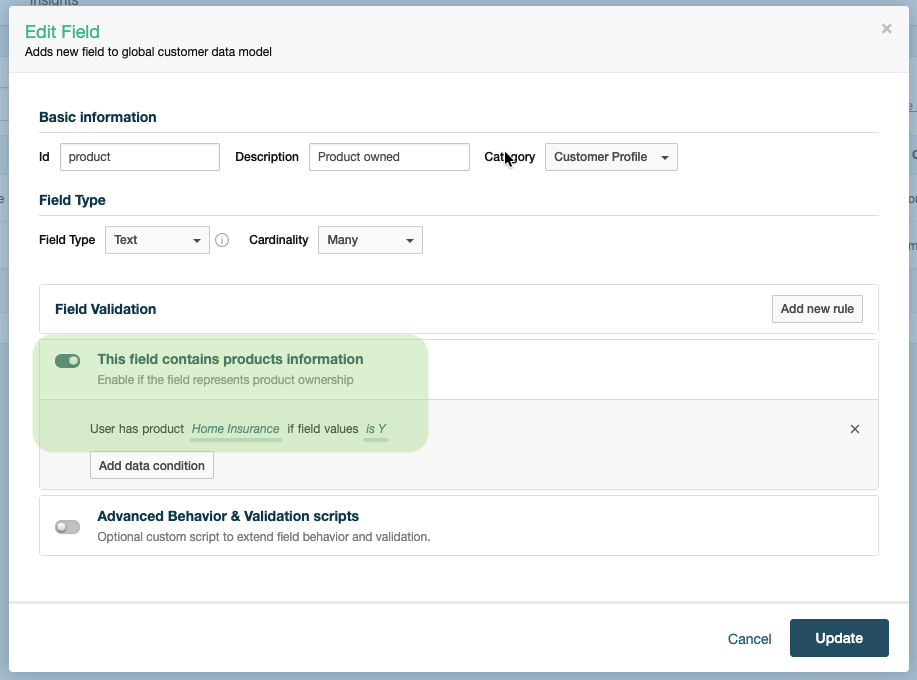
Press Update to save.
Composite Field
If the field is composite, you must first define the position that contains the data to compare in the Field Position table:
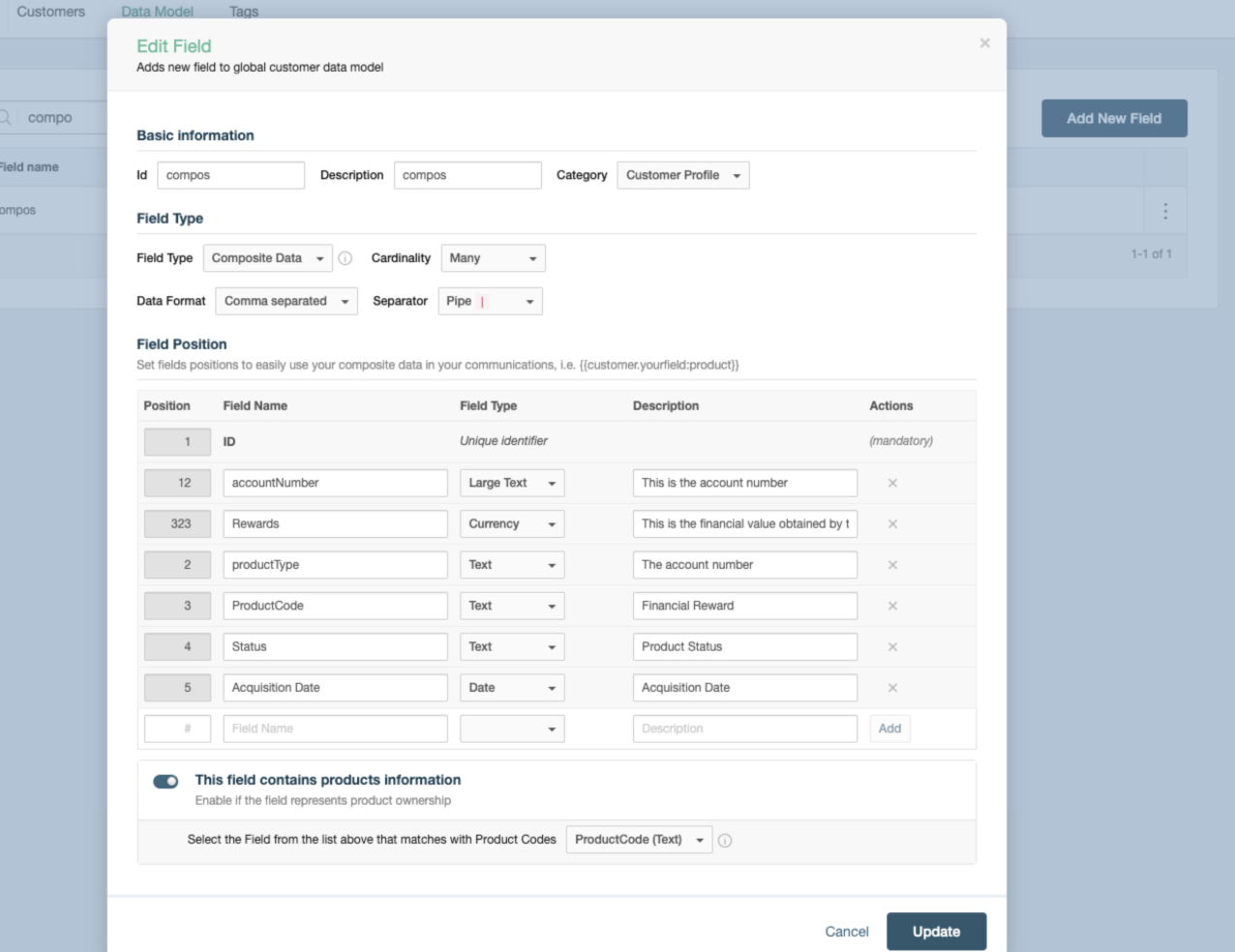
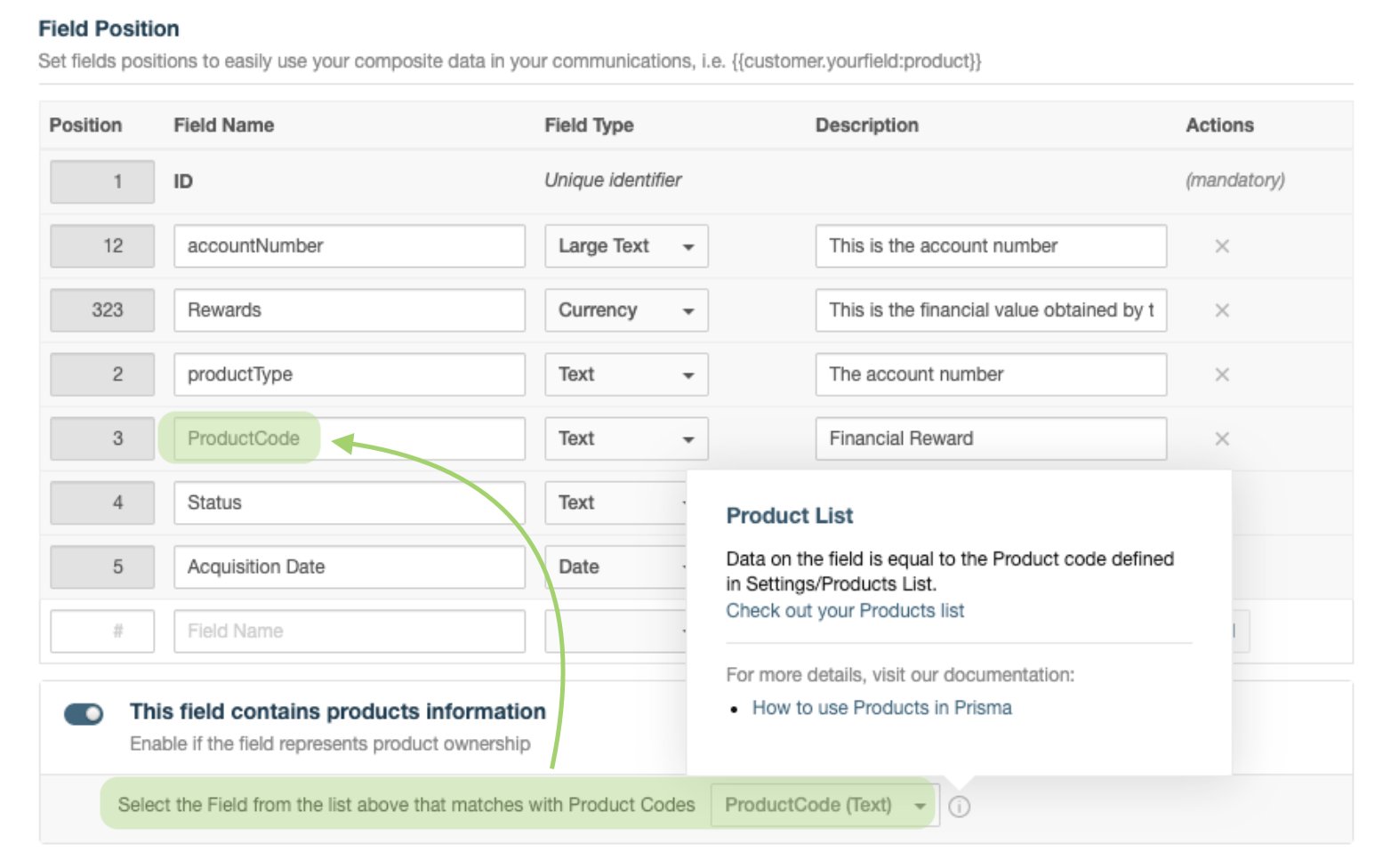
Then, follow the same procedure as in step 2 of the previous case, but select the data position in the dropdown list Select the Field from the list above that matches with Product Codes. In the example below, ProductCode is used for illustration.
Recording Acquisitions in Campaigns
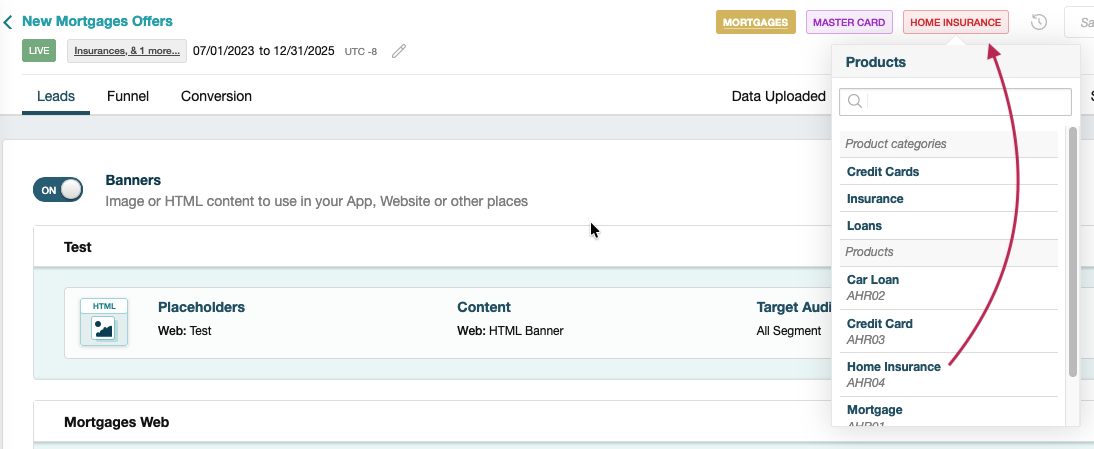
Products are assigned to a campaign in the same way as categories and groups are assigned. This way, Prisma Campaigns can automatically track acquisitions of that product related to the campaign.
The image below shows the assignment of Home Insurance:
The acquisition of a product is automatically recorded when the following two conditions are met:
- The customer participates in a campaign that has an assigned product (for example, Loan).
- The field that defines the acquisition changes for that customer during a data import.
When the criteria mentioned above are met, the product acquisition is automatically marked for that customer and it is assumed that the acquisition was made thanks to the campaign as illustrated in the image below:
Related Articles
On this page